Change Server's Port to Which The System Will Listen To
The [Listen] section allows control of the IP and port to which the server will listen on for connection requests from WaveView clients.
To change the port number you will need to add a parameter in the Advanced Configuration/Config Editor screen.
To do this, you will have to:
- Login as Install.
- Depending on the version, Navigate to View > Setup > Advanced Config (for version 6.12 and prior) or View > Setup > Server > Config Editor (for version 6.14 and above
- Right-click any entry and select "Add Section".
- Name it: Listen
Image
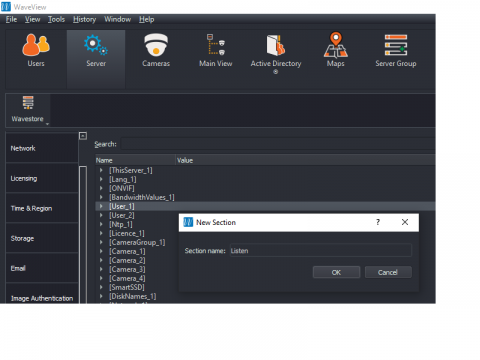
- Right-click on the Listen section and choose "Add Parameter".
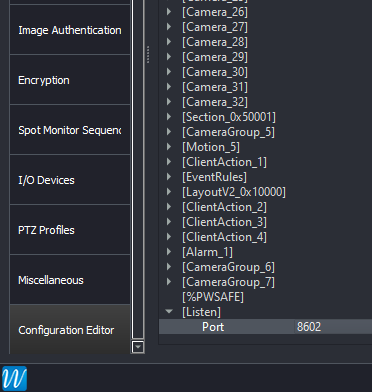
- Type in: Port=(The port you want to set it as)
- e.g. Port=8602
- Click ok.
- Should look something like this:
Image
- Save and Restart Process. Please note that after the port is changed, you will need to login to the server with an IP address followed by that port number e.g 192.168.1.1:8602